Git Over Reticulum
This chapter of the manual serves as the technical reference for the distributed software development and project collaboration tools included in RNS. For a conceptual overview, see the Distributed Development chapter.
A set of utilities for distributed collaborative software development and publishing are included in RNS.
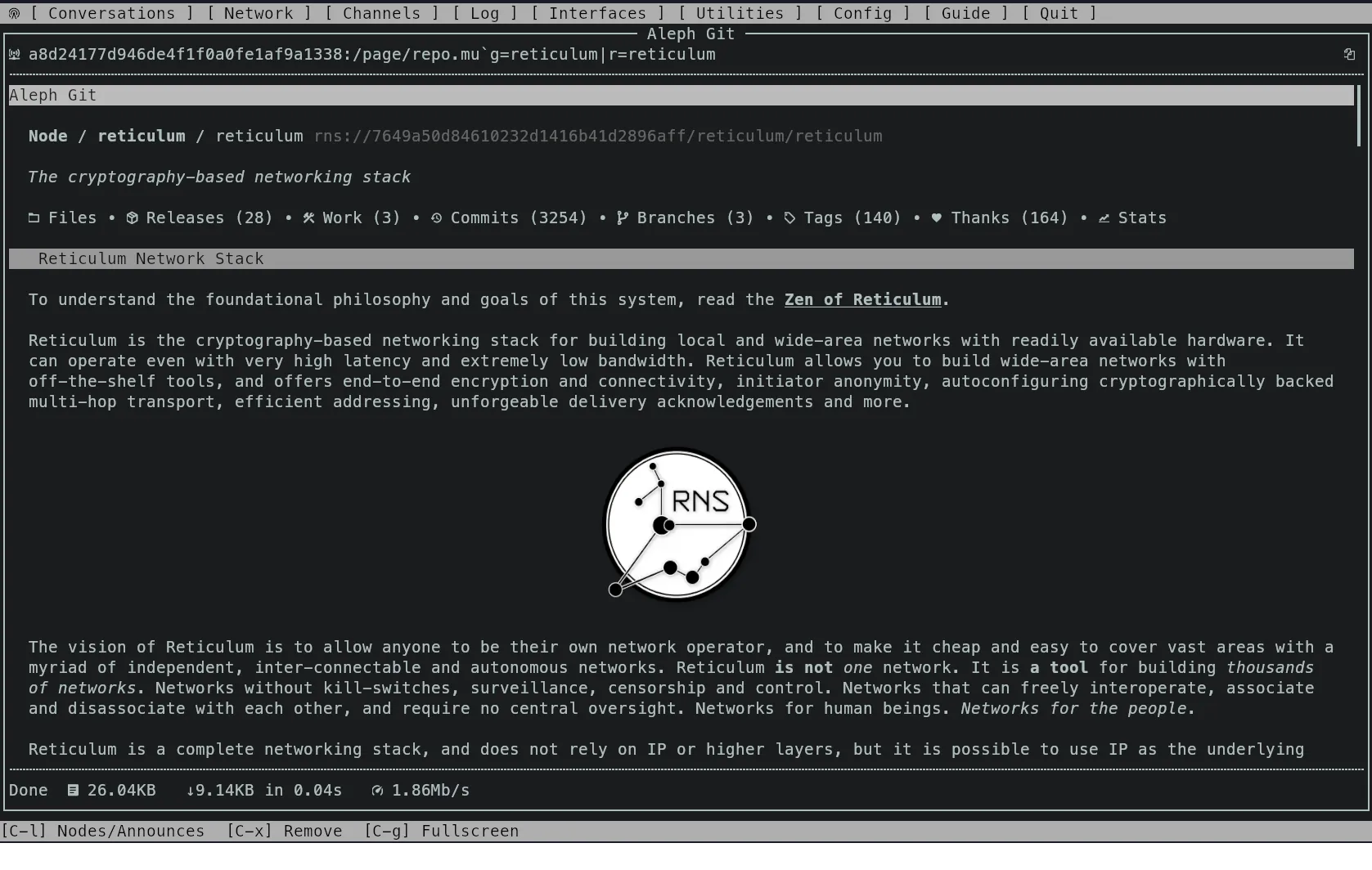
The system consists of two parts: The rngit node that hosts repositories, and the git-remote-rns helper that enables Git to communicate with rngit nodes. As soon as you have RNS installed on your system, you can transparently use Git with Reticulum-hosted repositories just like any other type of remote. Git over Reticulum uses URLs in the following format: rns://DESTINATION_HASH/group/repo.
If you set a branch to track a Reticulum remote as the default upstream, you can simply use git as you normally would; all commands work transparently and as expected.
Important
The rngit program is a new addition to RNS! This functionality was introduced in RNS 1.2.0. While great care has been taken to design a secure, but highly configurable and flexible permission system for allowing many users to interact with many different repositories on a single node, rngit has not been tested extensively in the wild! Be careful when hosting repositories, especially if they are public or semi-public.
The rngit Utility
The rngit utility provides full Git repository hosting and interaction over Reticulum. It allows you to host and manage Git repositories and releases on Reticulum nodes, and to interact with remote repositories using standard Git commands through the rns:// URL scheme.
Usage Examples
Run rngit to start a repository node:
$ rngit

[Notice] Starting Reticulum Git Node...
[Notice] Reticulum Git Node listening on <0d7334d411d00120cbad24edf355fdd2>
On the first run, rngit will create a default configuration file. You will then need to edit this, to point to your repository locations, configure access permissions, and perform any other necessary configuration.
Them, view your identity and destination hashes:
$ rngit --print-identity

Git Peer Identity         : <959e10e5efc1bd9d97a4083babe51dea>
Repository Node Identity  : <153cb870b4665b8c1c348896292b0bad>
Repositories Destination  : <0d7334d411d00120cbad24edf355fdd2>
If the page node is enabled, the output will also include the Nomad Network destination hash.
You can run rngit in service mode with logging to file:
$ rngit -s
Clone a repository from a remote rngit node:
$ git clone rns://50824b711717f97c2fb1166ceddd5ea9/public/myrepo
Add a Reticulum remote to an existing repository:
$ git remote add some_remote rns://50824b711717f97c2fb1166ceddd5ea9/public/myrepo
Push changes to the Reticulum remote:
$ git push some_remote master
Get changes from a remote repository:
$ git pull rns_remote master
Fork an existing repository from a remote to your rngit node:
$ rngit fork rns://8a37cdd16938ce79861561adbd59023a/reticulum/lxmf rns://50824b711717f97c2fb1166ceddd5ea9/public/myfork
All Command-Line Options (rngit)
usage: rngit.py [-h] [--config CONFIG] [--rnsconfig RNSCONFIG] [-s] [-i] [-v]
                [-q] [--version]

Reticulum Git Repository Node

options:
  -h, --help            show this help message and exit
  --config CONFIG       path to alternative config directory
  --rnsconfig RNSCONFIG
                        path to alternative Reticulum config directory
  -p, --print-identity  print identity and destination info and exit
  -s, --service         rngit is running as a service and should log to file
  -i, --interactive     drop into interactive shell after initialisation
  -v, --verbose         increase verbosity
  -q, --quiet           decrease verbosity
  --version             show program's version number and exit
All Command-Line Options (git-remote-rns)
The git-remote-rns helper is automatically invoked by Git when interacting with rns:// URLs. It is not typically run directly by users, but accepts the following environment variables for configuration:
RNGIT_CONFIG- Path to alternative client configuration directoryRNS_CONFIG- Path to alternative Reticulum configuration directory
The client configuration file is located at ~/.rngit/client_config and allows adjusting parameters such as the reference batch size for transfers.
Repository Creation & Management
The rngit utility provides several ways to create and manage repositories on a node: creating empty repositories, forking from existing repositories, and mirroring remote repositories.
Creating Empty Repositories
To create a new empty repository on a remote node:
$ rngit create rns://50824b711717f97c2fb1166ceddd5ea9/public/myrepo

Repository public/myrepo created
This creates a bare Git repository at the specified path. You must have create permission for the target group. When a repository is created, the creator automatically receives adm (admin) permissions on the repository through an auto-generated .allowed file.
Tip
If you want to use a different primary branch name than master, you can change it inside the bare git repository directory with git symbolic-ref HEAD refs/heads/name_of_other_branch.
All Command-Line Options (rngit create)
usage: rngit create [-h] [--config CONFIG] [--rnsconfig RNSCONFIG]
                    [-i PATH] [-v] [-q] [--version]
                    repository

Reticulum Git Repository Creation

positional arguments:
  repository            URL of repository to create

options:
  -h, --help            show this help message and exit
  --config CONFIG       path to alternative config directory
  --rnsconfig RNSCONFIG
                        path to alternative Reticulum config directory
  -i, --identity PATH   path to identity
  -v, --verbose
  -q, --quiet
  --version             show program's version number and exit
Forking Repositories
Forking creates a copy of an existing repository (from any accessible Git URL) on your rngit node. Forks maintain a reference to their upstream source for later synchronization.
To fork a repository:
$ rngit fork https://github.com/user/original rns://50824b711717f97c2fb1166ceddd5ea9/public/myfork

Repository forked to public/myfork
The source can be any valid Git URL, including:
HTTPS URLs:
https://github.com/user/repo.gitSSH URLs:
ssh://git@host.com/repo.gitReticulum URLs:
rns://DESTINATION_HASH/group/repo
Forks are created as bare repositories with metadata tracking their origin. The fork process:
Creates a new bare repository
Fetches all refs (
+refs/*:refs/*) from the sourceSets
repository.rngit.typetoforkSets
repository.rngit.upstream.sourceto the source URLGrants creator admin permissions
All Command-Line Options (rngit fork)
usage: rngit fork [-h] [--config CONFIG] [--rnsconfig RNSCONFIG]
                  [-i PATH] [-v] [-q] [--version]
                  source target

Reticulum Git Repository Forker

positional arguments:
  source                URL of source repository
  target                URL of target repository

options:
  -h, --help            show this help message and exit
  --config CONFIG       path to alternative config directory
  --rnsconfig RNSCONFIG
                        path to alternative Reticulum config directory
  -i, --identity PATH   path to identity
  -v, --verbose
  -q, --quiet
  --version             show program's version number and exit
Mirroring Repositories
Mirrors are similar to forks but are designed for keeping a local copy synchronized with an upstream repository. Mirrors can be automatically updated on a configurable schedule.
To create a mirror:
$ rngit mirror https://github.com/user/upstream rns://50824b711717f97c2fb1166ceddd5ea9/public/mymirror

Repository mirrored to public/mymirror
Mirrors are created with the same process as forks, but with repository.rngit.type set to mirror and an additional repository.rngit.upstream.sync timestamp tracking the last successful synchronization.
All Command-Line Options (rngit mirror)
usage: rngit mirror [-h] [--config CONFIG] [--rnsconfig RNSCONFIG]
                    [-i PATH] [-v] [-q] [--version]
                    source target

Reticulum Git Mirror Management

positional arguments:
  source                URL of source repository
  target                URL of target repository

options:
  -h, --help            show this help message and exit
  --config CONFIG       path to alternative config directory
  --rnsconfig RNSCONFIG
                        path to alternative Reticulum config directory
  -i, --identity PATH   path to identity
  -v, --verbose
  -q, --quiet
  --version             show program's version number and exit
Automatic Mirror Synchronization
The rngit node can automatically keep mirrors synchronized with their upstream sources. This is configured in the main configuration file:
[rngit]
mirror_interval = 24
The mirror_interval specifies the synchronization interval in hours (default: 24). The node checks for mirrors needing sync every 15 minutes, and fetches updates from upstream if the configured interval has elapsed since the last sync.
For automatic sync to happen, the repository must have been created with rngit mirror. Sync failures are logged but do not prevent future retry attempts. The sync timestamp is only updated on successful completion.
Manual Synchronization
Both forks and mirrors can be manually synchronized on demand using the sync command:
$ rngit sync rns://50824b711717f97c2fb1166ceddd5ea9/public/myfork

Repository synced
This fetches all refs from the upstream source configured when the repository was created. You must have read and write permissions for the repository to perform a manual sync.
For mirrors, manual sync also updates the sync timestamp, effectively resetting the automatic sync timer.
All Command-Line Options (rngit sync)
usage: rngit sync [-h] [--config CONFIG] [--rnsconfig RNSCONFIG]
                  [-i PATH] [-v] [-q] [--version]
                  repository

Reticulum Git Repository Syncer

positional arguments:
  repository            URL of repository

options:
  -h, --help            show this help message and exit
  --config CONFIG       path to alternative config directory
  --rnsconfig RNSCONFIG
                        path to alternative Reticulum config directory
  -i, --identity PATH   path to identity
  -v, --verbose
  -q, --quiet
  --version             show program's version number and exit
Git Configuration Parameters
Repositories created through rngit store metadata in Git configuration:
repository.rngit.type- Eitherforkormirrorrepository.rngit.upstream.source- The source URL used during creationrepository.rngit.upstream.sync- Unix timestamp of last successful sync for mirrors
These parameters are used by the sync system and can be queried using standard Git commands:
$ git config --get repository.rngit.type
mirror

$ git config --get repository.rngit.upstream.source
https://github.com/user/upstream

$ git config --get repository.rngit.upstream.sync
1716230400
Repository Structure
The rngit node organizes repositories into groups. Each group is a directory containing bare Git repositories. The repository path format is group_name/repo_name. For example, a repository at /var/git/public/myrepo would be accessible as public/myrepo via the URL rns://DESTINATION_HASH/public/myrepo.
Configuration
The rngit node configuration file is located at ~/.rngit/config (or /etc/rngit/config for system-wide installations). The default configuration includes:
Repository group paths defining where to find bare repositories
Access permissions for groups and individual repositories
Announce intervals for network visibility
Optional statistics recording for repository activity
Permissions
The rngit permission system provides fine-grained access control at multiple levels: group-level, repository-level, and document-level. Permissions can be statically configured in files or dynamically generated via executable scripts.
Access permissions can be configured at the group level in the config file or per-group .allowed files, or per-repository .allowed files. The s (stats) permission allows viewing repository activity statistics, including views, fetches and pushes over time. To enable statistics recording, set record_stats = yes in the [rngit] section of the configuration file. You can also exclude specific identities from statistics by adding their hashes to stats_ignore_identities.
By default, no permissions are granted for anything! You will have to enable the permissions you require to be able to actually do something with rngit.
Permissions can be modified by editing the rngit config file, individual .allowed files on disk, or remotely using the rngit perms command.
Permission Types
The following permissions are supported:
r(read) - Clone, fetch, and view repositories and work documentsw(write) - Push changes and manage work documentsrw(read/write) - Combined read and write accessc(create) - Create, fork or mirror new repositories within a groups(stats) - View repository activity statisticsrel(release) - Create and manage releasesi(interact) - Comment on and interact with work documentsp(propose) - Propose new work documents (without full write access)adm(admin) - Full access
Permission targets can be:
allora- Everyonenoneorn- NobodyA specific Reticulum identity hash
Permission Hierarchy
Permissions are resolved in the following hierarchy:
Repository-level permissions - Checked first, if none exists group permissions are checked
Group-level permissions - Used as fallback if no repository-level permissions are set
Admin override - Finally, potential admin rights are checked
For work documents, work document specific permissions are always checked first, and work documents have additional specific checks such as modifications only being possible by the document author.
Configuration Methods
Group-Level Configuration
Group permissions can be configured in the [access] section of the main config file:
[access]
  public = r:all, w:9710b86ba12c42d1d8f30f74fe509286
  internal = rw:9710b86ba12c42d1d8f30f74fe509286
  collaborative = r:all, i:all, p:all, w:9710b86ba12c42d1d8f30f74fe509286
Additionally, they can be configured in a group group_name.allowed file, placed next to the group_name group directory.
Repository-Level Configuration
Repository-specific permissions are set in .allowed files placed next to the repository directory (for example, myrepo.allowed for myrepo):
# myrepo.allowed
r:all
w:9710b86ba12c42d1d8f30f74fe509286
rel:9710b86ba12c42d1d8f30f74fe509286
Dynamic Permissions
Permission files can be made executable to generate permissions dynamically:
$ chmod +x myrepo.allowed
When executable, the script is run and its stdout is parsed as permission rules. This allows integration with external authentication systems.
Work Document Permissions
Work documents support additional permission granularity through .allowed files in the work directory (e.g., 42.allowed for document #42). These files use the same permission syntax but only support:
r(read) - View the documentw(write) - Edit the documenti(interact) - Comment on the documentp(propose) - Propose changes (future use)adm(admin) - Full control over the document
Document permissions override repository permissions for that specific document. Work document permissions can be updated simply by editing the .allowed file, or remotely by using the rngit work command.
Creator Permissions
When a user creates a repository (via create, fork, or mirror), they are automatically granted adm (admin) permissions on that repository.
When a user creates a work document, they automatically receive interact and write permissions on that document.
Permission Examples
Example 1: Public Read, Restricted Write
r:all
w:9710b86ba12c42d1d8f30f74fe509286
Everyone can read, only the specified identity can write.
Example 2: Collaborative Development
r:all
i:all
p:all
w:9710b86ba12c42d1d8f30f74fe509286
rel:9710b86ba12c42d1d8f30f74fe509286
Everyone can read, interact (comment), and propose work documents. Only the specified identity can write, create releases, and manage work documents fully.
Example 3: Private Repository
rw:9710b86ba12c42d1d8f30f74fe509286
rw:a1b2c3d4e5f686ba12c42d1ba12ef1aa
Only the two specified identities have any access (read or write).
Example 4: Mirror with Stats
r:all
s:all
w:none
Everyone can read and view stats, but nobody can push (mirror is read-only from upstream).
Permission Short Forms
Permissions can be specified using short or long forms:
r=readw=writerw=readwritec=creates=statsrel=releasei=interactp=proposeadm=admin
Targets can also use short forms:
a=all=everyonen=none=nobody
Permission Configuration Locations
User install:
~/.rngit/configSystem install:
/etc/rngit/configGroup permissions:
<group_root>/<group_name>.allowedRepository permissions:
<group_root>/<group_name>/<repo_name>.allowedDocument permissions:
<group_root>/<group_name>.work/<doc_id>.allowed
Remote Permission Management
While permissions can be configured directly on the node by editing configuration files and .allowed files, rngit also supports remote permission management through the rngit perms command. This allows administrators to modify access controls for groups and repositories over Reticulum, without requiring shell access to the hosting node.
To use remote permission management, you must have admin permission on the target group or repository. The command opens your configured $EDITOR to modify permissions, using the same syntax and format as local .allowed files. When you save and exit the editor, the modified permissions are transmitted to the remote node and applied immediately.
Managing Group Permissions
To view or modify permissions for an entire repository group, specify the group URL (ending with the group name):
$ rngit perms rns://50824b711717f97c2fb1166ceddd5ea9/public
This retrieves the current permission configuration from the public.allowed file and opens it in your editor. Any changes you make are validated for syntax correctness. Invalid permission rules will be rejected with an error message indicating the problematic line.
Managing Repository Permissions
To manage permissions for a specific repository, include the repository name in the URL:
$ rngit perms rns://50824b711717f97c2fb1166ceddd5ea9/public/myrepo
This operates on the myrepo.allowed file next to the repository. Repository-level permissions take precedence over group-level permissions, allowing fine-grained access control for individual repositories within a group.
Permission Validation
When modifying permissions remotely, rngit validates that:
Each permission line follows the correct
permission:targetsyntaxPermission types are valid (r, w, rw, c, s, rel, i, p, adm)
Target specifications are valid (identity hashes,
all, ornone)Identity hashes, when specified, are the correct length (32 hexadecimal characters)
If validation fails, the editor will reopen with an error message describing the issue, allowing you to correct the problem before resubmitting.
Caution
Remote permission modification requires administrative access (the adm permission), which grants full control over the repository or group. The permission change request is transmitted over the encrypted Reticulum link, and the remote node verifies your identity cryptographically before applying changes. However, be aware that granting adm permissions to remote identities effectively delegates full control, including the ability to revoke your own access or modify permissions in ways you may not anticipate.
All Command-Line Options (rngit perms)
usage: rngit perms [-h] [--config CONFIG] [--rnsconfig RNSCONFIG]
                   [-i PATH] [-v] [-q] [--version]
                   remote

Reticulum Git Permission Manager

positional arguments:
  remote                URL of remote group or repository

options:
  -h, --help            show this help message and exit
  --config CONFIG       path to alternative config directory
  --rnsconfig RNSCONFIG
                        path to alternative Reticulum config directory
  -i, --identity PATH   path to identity
  -v, --verbose
  -q, --quiet
  --version             show program's version number and exit
Identity & Destination Aliases
To make permission and remote destination management easier, you can locally define aliases for commonly used identity and destination hashes. Identity aliases used in permissions resolution can be defined in the [aliases] section of the ~/.rngit/config file, while destination aliases are defined in the [aliases] section of the ~/.rngit/client_config file.
All alias definitions take the form of aliased_name = HASH:
[aliases]
  alice = d09285e660cfe27cee6d9a0beb58b7e0
  bob = ffcffb4e255e156e77f79b82c13086a6
Aliases are always resolved locally! If for example you fork a repository with rngit fork rns://bobs_node/public/repo_name rns://my_node/forks/repo_name, the forked repository will of course still reference the full, original destination hash, and use this for subsequent upstream syncs.
Serving Pages Over Nomad Network
In addition to providing Git repository access via the Git remote helper protocol and command-line tools, rngit can also run a Nomad Network compatible page node. This allows users to browse repository information, view file contents, inspect commit history and access repository statistics through any Nomad Network client.
When enabled, the page node provides a complete interface to your repositories, with automatic Markdown to Micron conversion, syntax-highlighted code browsing, and detailed commit, diff and statistics views.
Enabling the Git Page Node
To enable the page node, add the following to your ~/.rngit/config file:
[pages]
serve_nomadnet = yes
When the page node is enabled, rngit will listen on a Nomad Network node destination in addition to the Git repository destination. You can view the destination hash by running:
$ rngit --print-identity

Git Peer Identity         : <959e10e5efc1bd9d97a4083babe51dea>
Repository Node Identity  : <153cb870b4665b8c1c348896292b0bad>
Repositories Destination  : <0d7334d411d00120cbad24edf355fdd2>
Nomad Network Destination : <50824b711717f97c2fb1166ceddd5ea9>
Accessing Repository Pages
Once the page node is running, you can access it from any Nomad Network client by connecting to the Nomad Network destination. The page node provides the following views:
Front Page - Lists all repository groups accessible to your identity
Group Page - Shows all repositories within a group
Repository Page - Displays repository overview, description and README
Releases - List of releases for the repository, with information and downloads
File Browser - Browse directory trees and view and download file contents
Commits View - View commit history with pagination
Commit Details - Detailed commit information with file changes and diffs
Refs View - List branches and tags
Statistics - Activity charts showing views, fetches and pushes over time
All pages respect the same permission system used for Git access. If an identity does not have read access to a repository, they will not be able to view its pages.
Formatting & Syntax Highlighting
If the pygments Python module is installed on your system, the page node will automatically apply syntax highlighting to code files. The highlighting supports a wide range of programming languages and uses a color theme optimized for terminal display.
To enable syntax highlighting, install pygments:
pip install pygments
Markdown & Micron Support
README files and other Markdown documents are automatically converted to Micron markup for display in Nomad Network clients. You can also write your README files directly in Micron, in which case they will display and render as such in any Nomad Network client. The file browser also supports viewing both rendered and raw Markdown and Micron documents.
Code blocks in Markdown can include language hints for syntax highlighting:
```python
def hello_world():
    print("Hello, Reticulum!")
```
You can use rawmu code blocks to render raw Micron inside Markdown files. If you create a code block with the language hint rawmu, everything inside it will be treated as Micron directly.
Customizing Templates
The page node uses a template system that allows complete customization of the generated pages. Templates are stored in the ~/.rngit/templates/ directory as Micron files.
The following template files are supported:
base.mu- Base template wrapping all pagesfront.mu- Front page listing all groupsgroup.mu- Group page listing repositoriesrepo.mu- Repository overview pagereleases.mu- Release list pagerelease.mu- Release details pagetree.mu- File browser pagesblob.mu- File content displaycommits.mu- Commit history listingcommit.mu- Individual commit detail pagerefs.mu- Branches and tags listingstats.mu- Statistics pageno_ident.mu- Displayed to non-identified initiators if blocked
Templates can include the following variables:
{PAGE_CONTENT}- The main content of the page (required){NODE_NAME}- The configured node name{NAVIGATION}- Breadcrumb navigation links{VERSION}- The rngit version number{GEN_TIME}- Page generation time
Dynamic Templates
Templates can be made executable to generate dynamic content. If a template file has the executable bit set, it will be executed and its stdout used as the template content.
Icon Sets
By default, the page node uses Nerd Font icons. If you prefer simpler icons or your terminal does not support Nerd Fonts, you can enable Unicode icons instead:
[pages]
serve_nomadnet = yes
unicode_icons = yes
Repository Statistics
When statistics recording is enabled (see the record_stats configuration option), the page node can display activity charts for each repository. The statistics page shows:
Total and peak views, downloads, fetches and pushes
Daily activity charts over a 90-day period
Combined activity visualization
To view statistics, a user must have the s (stats) permission for the repository. See the Access Configuration section for details on setting permissions.
Repository Thanks
The page node includes a “Thanks” feature that allows users to express appreciation for a repository. On each repository page, a “Thanks” link is displayed showing the current thanks count. Clicking this link registers a thank you for the repository.
Configuration Example
A complete node configuration might look like this:
[rngit]
  node_name = My Git Node
  announce_interval = 360
  record_stats = yes

[repositories]
  public = /var/git/public
  internal = /var/git/internal

[access]
  public = r:all
  internal = rw:9710b86ba12c42d1d8f30f74fe509286

[pages]
  serve_nomadnet = yes
  unicode_icons = no
Verified Releases
The rngit release system provides cryptographic provenance and integrity guarantees through automatic signing of release artifacts and signed release manifests. When you create a release, rngit generates an Ed25519 signature for each artifact and embeds these signatures in a cryptographically signed release manifest (.rsm file). This allows anyone who obtains the release to verify its authenticity and integrity, regardless of how the files were distributed.
Obtaining Verified Releases
The rngit system lets you obtain releases securely and in a verified manner, by validating cryptographically signed release manifests in the .rsm format during the retrieval process. Once a release has been published with rngit, anyone that has read access to it can obtain the release with the rngit release command, for example:
$ rngit release rns://remote_node/group/some_program fetch latest:all
This command will connect to the remote, retrieve the latest release manifest, verify it’s signature and integrity (you can optionally specify a required signer identity with --signer), and then download and sequentially verify all artifacts included in the release.
If verification succeeds, the retrieved artifact files, along with the release manifest will be saved in the current working directory. From the above example, you would end up with a number of downloaded files, and a version- and package specific release manifest, such as some_program_1.5.2.rsm.
Important
Keeping the retrieved release manifest is a very good idea! It allows you to easily obtain future releases and updates to the software directly, while verifying they came from the same publisher.
Obtaining & Updating Releases Using RSM Manifests
One of the key features of the rngit release system is the ability to fetch and verify new releases using only a signed release manifest. This is particularly valuable for distributing software over Reticulum. Once someone has an .rsm manifest of your package, they can use it to continually retrieve and update the software.
To fetch a release using a manifest:
$ rngit release some_program_1.5.2.rsm fetch latest:all
This command:
Validates the manifest signature to confirm authenticity
Extracts the origin node and repository path from the signed manifest
Connects to the origin node over Reticulum
Gets the latest release manifest from the developer
Verifies it against the existing manifest
Fetches each artifact listed in the manifest
Verifies each downloaded file against the signature embedded in the manifest
If any artifact fails signature verification, the fetch aborts with an error, preventing the installation of corrupted or tampered files.
Specifying Required Signers
You can require that releases be signed by specific identities. When fetching a release, use the --signer option to specify the identity hash of the required signer:
$ rngit release rns://remote_node/public/myrepo fetch latest:all --signer 21a8daa6d9c3d3b8aab6e94b6bcb0e33
If the release was not signed by the specified identity, the fetch will abort before any files are downloaded. Likewise, if any downloaded artifacts were not signed by the required identity, the process will abort at the first invalid signature. This provides strong guarantees about the provenance of the software you are installing.
The signer check also works when fetching from a local manifest:
$ rngit release manifest.rsm fetch latest:all --signer 21a8daa6d9c3d3b8aab6e94b6bcb0e33
Selective & Partial Fetches
You can fetch individual artifacts from a release by specifying the artifact name instead of all:
$ rngit release rns://remote_node/public/myrepo fetch 1.2.0:myapp-1.2.0.tar.gz
This downloads only the specified artifact and verifies its signature against the manifest. If a file already exists locally, rngit verifies it against the manifest signature and skips the download if valid, making it safe to run the command multiple times. When fetching releases, rngit release will only download files that are missing or invalid according to the manifest. This means that partially completed release fetches can be continued later, if interrupted.
Pattern Matching for Artifacts
When fetching selective artifacts, you are not limited to exact names or the all keyword. You can use shell-style wildcard patterns to match multiple artifacts flexibly. This is particularly useful for selecting platform-specific builds, version ranges, or file types without specifying each file individually.
Tip
When using pattern matching, make sure to enclose the target specification in quotes. Otherwise,
your shell will probably interpret it as a shell expansion pattern before it is passed as an
argument to rngit!
The pattern matching supports standard Unix wildcards:
*matches any sequence of characters (including empty)?matches any single character[seq]matches any character in seq (for example[0-9]or[abc])[!seq]matches any character not in seq
For example, to fetch all wheel files for Python 3 across any platform:
$ rngit release rns://remote_node/public/myrepo fetch "1.2.0:*-py3-*.whl"
To fetch a specific patch version when you know the major and minor version:
$ rngit release rns://remote_node/public/myrepo fetch "1.2.0:myapp-1.2.?-linux-x86_64.tar.gz"
Or to retrieve all source archives:
$ rngit release rns://remote_node/public/myrepo fetch "1.2.0:source_*.tgz"
If your pattern contains no wildcard characters, it must match an artifact name exactly, which is useful for fetching single, specific artifacts. When a pattern matches multiple artifacts, all matched files are fetched and verified. If no artifacts match the pattern, the fetch aborts with an error indicating no matches were found.
Offline Verification
Because the release manifest contains embedded signatures, you can verify the integrity of release artifacts offline, without connecting to the repository node. The rnid and rngit utilities can validate artifact signatures against .rsg and manifest files.
Using a release manifest:
Ensure the release manifest is located in the same directory as the release artifacts, then run:
# Verify all artifacts in the manifest
$ rngit release myapp-1.2.0.rsm verify

# Or, verify only specific artifacts
$ rngit release myapp-1.2.0.rsm verify "latest:*.whl"
This will load the manifest, and verify all files currently on-disk, but will not attempt to fetch the latest release manifest from the origin, or update local files to match it.
Note
The verify operation is functionally equivalent to using the fetch operation with the --offline flag, and they can be used interchangably.
For individual files:
Ensure the .rsg signature is located in the same directory as the release artifact, then run:
$ rnid -V myapp-1.2.0.tar.gz
This validates that the artifact file matches the signature created during the release process. Combined with the manifest’s own signature, this provides end-to-end verification from the original release creation to the final installation.
Creating Signed Releases
Reticulum and the rngit system makes it easy to create signed releases that your users can verify and update securely. When you create a release using rngit, the program automatically:
Generates an Ed25519 signature for each artifact file using your identity’s signing key
Creates
.rsgsignature files alongside each artifact in your distribution directoryConstructs a signed
manifest.rsmrelease manifest containing metadata, an artifact list, and embedded signaturesTransmits both artifacts, signatures and manifest to the remote node specified as release origin
As an example, to create and publish a release from all files in the folder named dist, simply run:
$ rngit release rns://my_node/group/myrepo create 1.2.0:./dist
Everything is automatically signed and uploaded to your node, and the release manifest will now include the following signed attestation information:
Package name and version
The release notes for this release
Release timestamp and commit hash
Origin node identity and repository path
Complete list of artifacts
Embedded signatures for each artifact
That’s it, there’s nothing more to it than one command. Users can now securely obtain your release using rngit release fetch.
Release Manifest Format
Release manifests use the .rsm format (a general-purpose, structured signed message format) and are themselves cryptographically signed documents. The manifest format embeds the signing identity’s public key and a detached signature that covers the entire manifest content. This creates a chain of trust: the manifest signature proves the manifest’s authenticity, and the embedded artifact signatures prove each file’s integrity.
When a release is created, the manifest is stored as manifest.rsm in the release artifacts directory. You can also generate a local release manifest without uploading by using the --local flag:
$ rngit release rns://f2d31b2e080e5d4e358d32822ee4a3b7/public/myrepo create 1.2.0:./dist --local
This creates the .rsg signature files and manifest.rsm in your local distribution directory without connecting to the remote node, allowing you to inspect or distribute the signed release through alternative channels.
Signature File Format
Individual artifact signatures use the Reticulum Signature (.rsg) format and contain:
The Ed25519 signature of the file
The signing identity’s public key
Optional metadata, such as timestamps or notes
These signature files are created automatically during the release process and can be used independently of the manifest for verification purposes. The rnid utility can create and validate RSG signatures for any file, making this signature format useful beyond the rngit release system.
Good Practices for Signature Distribution
While release manifests in the .rsm format include embedded .rsg signatures for every listed artifact, it is dependent on the situation and requirements whether individual .rsg signatures are distributed as well. It is generally a good idea to do so, since they are very light-weight, and provide an easy and convenient way to validate and authenticate individual files, as opposed to entire releases.
When distributing software through multiple channels (direct download, mirror networks, physical media), including the .rsm manifest allows recipients to verify authenticity regardless of how they obtained the files. This is particularly valuable in low-connectivity environments where Reticulum may be the only available communication channel, as the manifest ensures that software updates can be verified even when received via store-and-forward mechanisms or physical media transport.
Integration with Package Management
While this functionality is still under development, the signed release manifest format is designed to be consumed by package management systems and automated deployment tools. Because the manifest is cryptographically signed and contains all necessary metadata and integrity checks, it can serve as a trusted source of truth for software distribution, even when fetched over untrusted channels or stored for long periods.
Release Encryption
While API primitives and command-line tools are currently not implemented for this, the release, distribution and verification system has been designed to also support encrypted releases, which can be distributed securely to authorized recipients.
Verified Package Format
The current system is being expanded to also include an .rvp package format, which can contain packaged releases including all relevant artifacts, metadata, manifest and signatures.
Automated Mirror Discovery
The rngit release system is designed to support automated mirror discovery and distribution package retrieval over Reticulum networks. Since everything is cryptographically signed and verified, it is possible to create automated mirror and distribution networks, where users can obtain software and information from local sources, without risking malicious modifications to the software they rely on. This functionality is currently in development.
Release Management
In addition to hosting Git repositories, rngit provides a complete release management system. This allows you to publish versioned releases with associated artifacts, release notes and metadata. Releases are managed through the rngit release subcommand, and are also viewable through the Nomad Network page interface.
The Release Workflow
Creating a release involves specifying a Git tag and a directory containing build artifacts or other files to distribute. The rngit client will open your configured $EDITOR to compose release notes, then upload all artifacts to the remote repository node.
To create a release, specify the tag name and path to artifacts:
$ rngit release rns://50824b711717f97c2fb1166ceddd5ea9/public/myrepo create 1.2.0:./dist
This will:
Verify that the tag
1.2.0exists in the repositoryOpen your editor to write release notes
Upload all files from the
./distdirectoryPublish the release
If no $EDITOR environment variable is set, rngit will try to use nano, vim or vi. The editor will show a template with instructions. Lines starting with # will be ignored, and if the remaining content is empty after stripping comments, the release creation will be cancelled.
Release Storage & Structure
Releases are stored on the node in a directory named repo_name.releases next to the bare repository. Each release is a subdirectory containing:
META- Release metadata in ConfigObj formatRELEASE.mdorRELEASE.mu- Release notesartifacts/- All uploaded filesTHANKS- Appreciation count from users
Command-Line Interaction
Listing Releases
To view all releases for a repository:
$ rngit release rns://50824b711717f97c2fb1166ceddd5ea9/public/myrepo list

Tag          Status     Created              Objs  Notes
------------------------------------------------------------------
1.2.0        published  2025-01-15 14:32     3     Another release
1.1.0        published  2024-12-03 09:15     2     Bug fix release
1.0.0        published  2024-10-20 16:45     2     Initial release
Viewing Release Details
To see full information about a specific release:
$ rngit release rns://50824b711717f97c2fb1166ceddd5ea9/public/myrepo view 1.2.0

Release : 1.2.0
Status  : published
Created : 2026-05-04 23:53:09
Thanks  : 5

Release Notes
=============

Version 1.2.0 release notes...

Artifacts (4)
=============
  - myapp-1.2.0.tar.gz (1.5 MB)
  - myapp-1.2.0.zip (1.6 MB)
  - checksums.txt (256 B)
Fetching Releases
To fetch a release, specify the remote URL, version and artifacts:
$ rngit release rns://50824b711717f97c2fb1166ceddd5ea9/public/myrepo fetch latest:all
This process is described in greater detail in the Obtaining Verified Releases section.
Creating Releases
To fetch a release, specify the remote URL, version and artifacts:
$ rngit release rns://50824b711717f97c2fb1166ceddd5ea9/public/myrepo create 1.3.9:artifacts_dir
This process is described in greater detail in the Creating Signed Releases section.
Deleting Releases
To remove a release:
$ rngit release rns://50824b711717f97c2fb1166ceddd5ea9/public/myrepo delete 1.2.0

Are you sure you want to delete release '1.2.0'? [y/N]: y
Release 1.2.0 deleted
Requirements & Validation
The specified tag must exist in the remote repository
You must have
releasepermission for the repositoryThe target artifacts directory must exist and contain at least one file
Release notes cannot be empty
Permissions
Release management requires the release permission, configured the same way as other repository permissions. In the config file or .allowed files, use rel:target to grant release management rights:
# In .allowed file or config
rel:all          # Allow everyone
rel:9710b86...   # Allow specific identity
rel:none         # Deny everyone
Nomad Network Interface
When the Nomad Network page node is enabled, releases are displayed on a dedicated releases page for each repository. Each release is listed with its tag, creation date, artifact count and a preview of the release notes. Clicking a release shows the full details including formatted release notes and a listing of all artifacts with their sizes.
All Command-Line Options (rngit release)
usage: python -m RNS.Utilities.rngit.server [-h] [--config CONFIG] [--rnsconfig RNSCONFIG]
                                            [-i PATH] [-s PATH] [-n name] [-L]
                                            [-o] [-v] [-q] [--version]
                                            [repository] [operation] [target]

Reticulum Git Release Manager

positional arguments:
  repository            URL of remote repository, or path to RSM manifest
  operation             list, view, fetch, create, latest or delete
  target                tag and path to release artifacts directory

options:
  -h, --help            show this help message and exit
  --config CONFIG       path to alternative config directory
  --rnsconfig RNSCONFIG
                        path to alternative Reticulum config directory
  -i, --identity PATH   path to release identity
  -s, --signer PATH     path to signing identity, if different from release identity
  -n, --name name       package name if different from repo name
  -L, --local           generate release locally, but don't upload
  -o, --offline         verify manifest locally, but don't fetch updates
  -v, --verbose
  -q, --quiet
  --version             show program's version number and exit
Work Documents
In addition to releases, rngit provides a work document management system for tracking tasks, investigations, issues and progress related to repositories. Work documents are stored as structured msgpack data and support threaded updates and comments.
Working With Work Documents
Listing Work Documents
To view work documents for a repository:
$ rngit work rns://50824b711717f97c2fb1166ceddd5ea9/public/myrepo list

Active documents
=================

ID   Title                    Author             Created           Comments
---------------------------------------------------------------------------
1    Implemented new feature  9710b86ba12c4f2e…  2025-01-15 14:32         3
2    Fixed bug in parser      8f3a21c9d84e927b…  2025-01-14 09:15         1
Use --scope completed to view completed work documents, --scope proposed to view proposed documents, or --scope all to see all scopes.
Viewing a Work Document
To view a specific work document with all its comments:
$ rngit work rns://50824b711717f97c2fb1166ceddd5ea9/public/myrepo view -d 1

Implement new feature (active #1)
=================================
Author   : 9710b86ba12c42d1d8f30f74fe509286
Status   : active
Created  : 2026-05-05 15:11:11
Edited   : 2026-05-05 18:22:11
Format   : markdown
Updates  : 0

This work document tracks the implementation of the new feature...

Updates
=======

#1 by 9710b86ba12c42d1d8f30f74fe509286 at 2026-05-05 15:38:37
-------------------------------------------------------------
Initial analysis complete
Creating Work Documents
To create a new work document:
$ rngit work rns://50824b711717f97c2fb1166ceddd5ea9/public/myrepo create --title "Investigate performance issue"
This will open your configured $EDITOR to compose the document content. Save and exit to create the document, or save an empty document to cancel.
Editing Work Documents
To edit an existing work document:
$ rngit work rns://50824b711717f97c2fb1166ceddd5ea9/public/myrepo edit -d 1
This fetches the current content, opens it in your editor, and sends any changes back to the node.
Adding Comments
To add an update to a work document:
$ rngit work rns://50824b711717f97c2fb1166ceddd5ea9/public/myrepo update -d 1
This opens your editor to compose the update.
Proposing Work Documents
Users with propose permission can create work document proposals without full write access. Proposals are created in a “proposed” state and must be activated by a user with appropriate permissions before becoming active.
To propose a work document:
$ rngit work rns://50824b711717f97c2fb1166ceddd5ea9/public/myrepo propose --title "Feature proposal"
This opens your editor to compose the proposal content. When saved, the document is created in the “proposed” scope. The creator automatically receives interact and write permissions on the proposed document.
Proposed documents are visible through --scope proposed or --scope all:
$ rngit work rns://50824b711717f97c2fb1166ceddd5ea9/public/myrepo list --scope proposed
Permissions for Proposals
Creating proposals requires
proposepermission on the repositoryThe creator automatically gets
interactandwriteon their proposed documentActivating a proposal requires
writeandinteractpermissions
State Management
Completing Work Documents
To mark a work document as completed (moving it from active to completed):
$ rngit work rns://50824b711717f97c2fb1166ceddd5ea9/public/myrepo complete -d 1

Work document #1 completed
Activating Work Documents
To mark a work document as active (moving it from completed to active):
$ rngit work rns://50824b711717f97c2fb1166ceddd5ea9/public/myrepo activate -d 1

Work document #1 activated
Deleting Work Documents
To delete a work document and all its comments:
$ rngit work rns://50824b711717f97c2fb1166ceddd5ea9/public/myrepo delete -id 1

Are you sure you want to delete active work document #1? [y/N]: y
Work document #1 deleted
Managing Work Document Permissions
Users with administrative access to a work document can manage its specific permissions. This allows fine-grained control over who can read, write, comment on, or administer individual work documents.
To view or edit permissions for a work document:
$ rngit work rns://50824b711717f97c2fb1166ceddd5ea9/public/myrepo perms -d 1
This opens your editor with the current permission configuration:
r:all
i:9710b86ba12c42d1d8f30f74fe509286
adm:9710b86ba12c42d1d8f30f74fe509286
Permission rules follow the same format as repository permissions:
r:target- Grant read accessw:target- Grant write accessi:target- Grant interact (comment) accessadm:target- Grant admin access
Targets can be all, none, or a specific identity hash.
Who Can Edit Permissions
Document permissions can be edited by:
The original author (if they also have
interactandwriteon the repository)Any user with
adminpermission on the documentRepository admins (through inherited permissions)
Permission Precedence
Document-specific permissions override repository-level permissions for that document. If document permissions exist, they are checked first; if access is not granted there, repository permissions are checked.
Author Rights:
Users can only edit or delete work documents they created
The author is cryptographically verified from the interacting link’s
remote_identityDocument creators automatically receive
interactandwriteon their documents
Storage Format
Work documents are stored in a repo_name.work directory next to the repository, containing:
active/- Active work documentscompleted/- Completed work documentsproposed/- Proposed work documents
Each document is a numbered directory containing:
root- The work document content and metadata (msgpack format)N- Numbered comment files (msgpack format)
Nomad Network Interface
When the Nomad Network page node is enabled, work documents are viewable through the nomadnet interface. The work page lists all documents with their status, and clicking a document shows its full content and updates.
Cryptographic Attribution
Every work document is cryptographically signed by its creator using their Reticulum identity. When you create or edit a document, rngit generates an Ed25519 signature of the content, which is stored alongside the document contents and verified by the remote node, or locally when viewing the work document through the command-line interface. This provides two essential guarantees:
Attribution: Every document and comment can be cryptographically attributed to its actual author
Integrity: Any modification to the content after creation would invalidate the signature
When viewing a work document, the signature validation status is displayed:
Author    : 9710b86ba12c42d1d8f30f74fe509286 (not locally validated)
Signature : Document not signed
Or, for valid signatures:
Author    : <9710b86ba12c42d1d8f30f74fe509286>
Signature : Valid
The “Valid” status indicates that the document content matches the author’s signature, and that the signing identity corresponds to the stated author. This can be used to create tamper-proof records of project decisions, investigations, and discussions that cannot be repudiated, or modified by third parties without detection.
This cryptographic provenance is particularly valuable for distributed teams operating across trust boundaries. Because signatures are verified using the author’s Reticulum identity public keys - which can be recalled from any transport node on the network - work documents provide authoritative records of who said what, and when, without requiring a central authority to notarize or validate the communication. Even if the repository node hosting the documents becomes unavailable, the signed document files themselves retain validity and can be verified independently using standard Reticulum identity tools.
All Command-Line Options (rngit work)
usage: rngit work [-h] [--config CONFIG] [--rnsconfig RNSCONFIG]
                  [-i PATH] [--scope SCOPE] [-t TITLE] [-d ID] [-v]
                  [-q] [--version]
                  [repository] [operation]

Reticulum Git Work Document Manager

positional arguments:
  repository            URL of remote repository
  operation             list, view, create, propose, edit, delete,
                        update, complete, activate or perms

options:
  -h, --help            show this help message and exit
  --config CONFIG       path to alternative config directory
  --rnsconfig RNSCONFIG
                        path to alternative Reticulum config directory
  -i, --identity PATH   path to identity
  --scope SCOPE         document scope: active, completed, proposed or all
  -t, --title TITLE     document title for create/propose
  -d, --id ID           document ID
  -v, --verbose
  -q, --quiet
  --version             show program's version number and exit
Commit Signing
The rngit system includes rngcs, a Git commit signing and validation shim that enables commit signing and validation using Reticulum identities. By hooking into Git’s SSH-based signing format, commits can be signed and verified using Reticulum identity keys directly.
Unlike traditional GPG and SSH-based commit signing, which relies on centralized keyservers, cumbersome co-signing procedures or manual per-signer setup, Reticulum commit signing uses self-contained RSG signatures, that can be deterministically resolved to Reticulum identity hashes.
This enables offline verification with no external infrastructure. The signature itself contains everything needed to cryptographically verify the signer’s Reticulum identity and that the commit was signed correctly by the claimed identity.
Prerequisites
Before you can sign commits, you need a Reticulum identity with a private key. If you don’t already have one, you can generate it using rnid:
$ rnid -g ~/.rngit/client_identity

New identity <1a54d64db7e8beca6f2c6cd17b0cb479> written to /home/user/.rngit/client_identity
The identity file must contain the private key to be usable for signing. The corresponding Reticulum identity hash will be used as the commit author identity.
Configuration
Git must be configured to use SSH-format signatures with the rngcs signing shim, which is included in RNS. You can configure this either globally or per-repository.
Global Configuration
Enabling Reticulum commit signing for all repositories is as simple as:
$ git config --global gpg.format ssh
$ git config --global gpg.ssh.program rngcs
$ git config --global gpg.ssh.allowedsignersfile none
$ git config --global user.signingKey ~/.rngit/client_identity
With this configuration, all commits you sign with git commit -S will use your Reticulum identity.
Note
The gpg.ssh.allowedsignersfile configuration key must be set for git to allow invoking the signing and verification shim. It is not actually used by rngcs, and can be set to an arbitrary value. All validation operations happen exclusively based on the information in the embedded RSG data.
Per-Repository Configuration
To enable signing only for a specific repository:
$ cd /path/to/repository
$ git config --local gpg.format ssh
$ git config --local gpg.ssh.program rngcs
$ git config --local gpg.ssh.allowedsignersfile none
$ git config --local user.signingKey ~/.rngit/client_identity
This is useful when you want to use different identities for different projects, or when only specific repositories require signed commits.
Signing Commits
Once configured, sign commits using the standard Git -S flag:
$ git commit -S -m "Refactored module"

[master 8f7e6d5] Refactored module
This will create a self-contained RSG-formatted signature, encode the RSG payload using base64, and wrap it in an ASCII-armored SSH-formatted signature block. The signature is then stored in the commit object’s signature header and includes:
The SHA256 hash of the commit content
The signer’s Reticulum identity hash
The signer’s public key
The actual signature of the complete envelope
Validating Commit Signatures
Commits are automatically validated when using git log --show-signature or git show --show-signature. The rngcs shim handles all verification operations. If any step fails, verification fails and Git displays an error.
To view signature information for commits, use Git’s standard --show-signature option:
$ git log --show-signature

commit 8f7e6d5c8f7e6d5c8f7e6d5c8f7e6d5c8f7e6d5
Good "git" signature for commit, signed with Reticulum Identity key <1a54d64db7e8beca6f2c6cd17b0cb479>
Author: Developer <1a54d64db7e8beca6f2c6cd17b0cb479>
Date:   Mon Jan 15 09:30:00 2026 +0100

    Refactored module
The output shows whether the commit signature is valid, and whether the author field matches the signing identity.
Tip
If you want to display both the identity hash and LXMF address for authors, you can generate a .mailmap file that resolves identities to LXMF addresses with the following script:
DIR="$( cd "$( dirname "${BASH_SOURCE[0]}" )" >/dev/null 2>&1 && pwd )"
cd $DIR

id_regex="<([0-9a-f]{32})( .*)*>"
extract_id="s/.*$id_regex/\1/g"

rm -f .mailmap
git shortlog -se | grep -Ee "$id_regex" | sed -r "$extract_id" | while read -r id ; do
    if lxmf=$(rnid -i $id -H lxmf.delivery | grep -Ee "destination for this Identity is" | sed -r "$extract_id"); then
        echo "<$id lxmf:$lxmf> <$id>" >> .mailmap
    fi
done